Back up and restore your data
One file, saved wherever you choose, holding everything Logbook knows.
Nothing is backed up automatically. Logbook has no account and no cloud, so there is no copy of your data anywhere except on your phone. If you lose the phone, wipe it, or uninstall the app without exporting first, the data is gone — and there is nothing held on our side to restore it from. That is the direct cost of the privacy promise, and it is worth five minutes now rather than finding out later.
Nothing is automatic
Most apps make this invisible: you sign in on a new phone and your history is waiting. That works because the app keeps a copy of your data on a server. Logbook does not have one, which is the whole point of it, so backing up is a thing you do rather than a thing that happens.
A backup is a single file. The app builds it, hands it to your phone’s ordinary share sheet, and you choose where it goes — iCloud Drive, Google Drive, Files, a computer, an email to yourself. Logbook never uploads it anywhere on its own, and does not connect to any cloud service to do this.
Make a backup
-
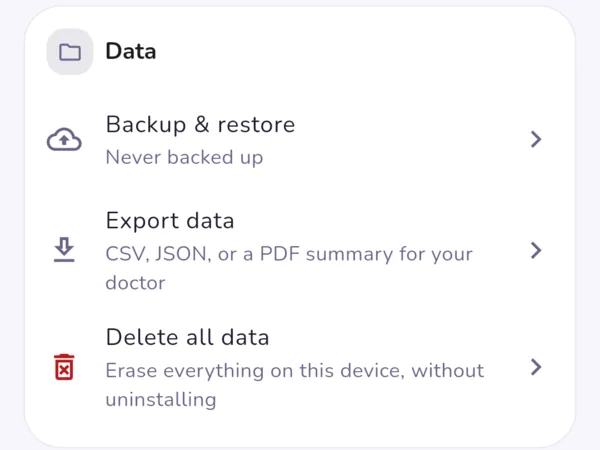
Open Settings → Data
Tap the gear icon, scroll to the Data card, and choose Backup & restore. The line underneath it tells you when you last made one, or says Never backed up.
-
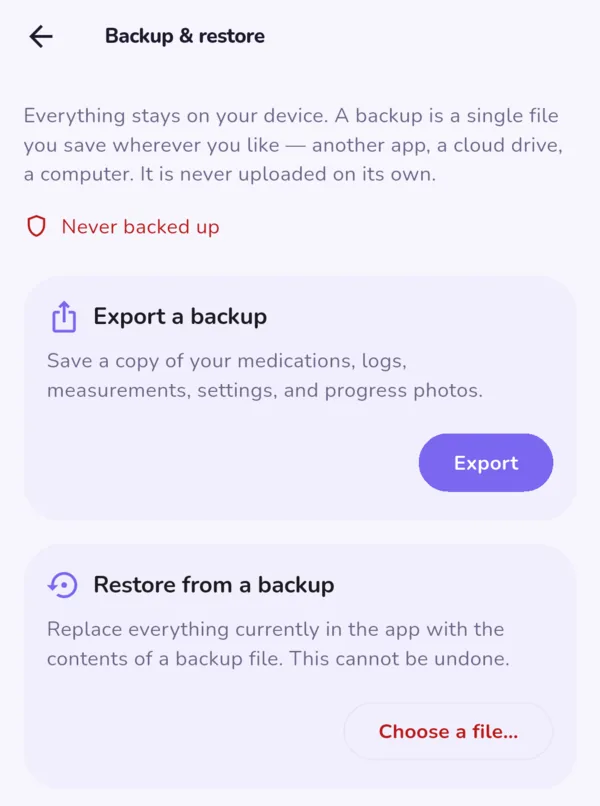
Tap Export
The screen has two halves that do opposite things. The top one makes a file. The bottom one reads a file back in and replaces everything, so it is deliberately the harder one to tap by accident.
Exporting takes a moment if you have a lot of progress photos — they are in the file too, and they are most of its size.
-
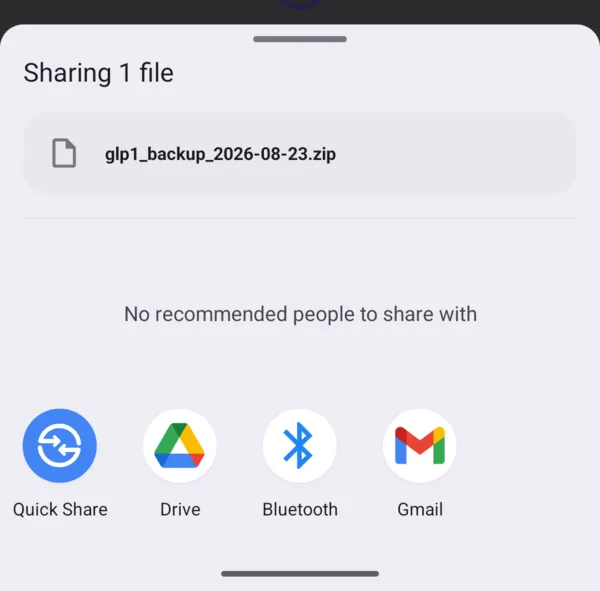
Choose where it goes
Your phone’s own share sheet opens with the file attached, named
glp1_backup_followed by today’s date. Send it to a cloud drive, save it to Files, or mail it to yourself.Pick a destination and finish the share. Backing out here cancels it, and no backup has been saved — the Never backed up line will still say exactly that.
Where to keep it
Somewhere that is not only on the phone you are backing up. A backup sitting in the Downloads folder of the phone you are about to drop in a lake has not achieved anything.
The file is not password-protected. It is an ordinary
.zip, and anyone who opens it can read your logged doses,
weights, measurements and progress photos. That is fine in your own
cloud drive or your own computer; it is not fine in a shared family
folder, a work drive, or an email thread with anyone else on it. Treat
it the way you would treat a photo of a prescription.
A reasonable habit: export after anything you would hate to redo — a month of logging, a set of progress photos — and keep the last two or three files rather than overwriting one. They are dated, so they sort themselves.
Restore from a backup
On the same screen, choose Restore from a backup and pick the file. Logbook reads it first and shows you what it contains — how many entries and photos — before anything is changed, so you can confirm you picked the right file.
Restoring replaces everything, and it cannot be undone. The contents of the file become the contents of the app. Anything you have logged on this phone since that backup was made is discarded. If the current phone has data you care about, export a fresh backup before you restore an older one.
If the app refuses the file, it will say why. The usual causes are
picking a .zip that is not a Logbook backup, and picking a
backup made by a newer version of the app than the one you are
restoring into — update Logbook and try again.
Moving to a new phone
The order matters, and the step people skip is the first one.
- On the old phone, make a backup and send it somewhere the new phone can reach — a cloud drive is easiest.
- Install Logbook on the new phone and open it. You can go through onboarding; restoring afterwards replaces whatever you entered.
- Restore the file from Settings → Data → Backup & restore.
- Check it looks right — your dose history, your weight chart, your photos — and only then wipe or trade in the old phone.
If you paid for the premium upgrade, that travels separately: it is tied to your App Store or Google Play account, not to the backup. Use Restore purchases in Settings while signed in with the same account you bought it with.
What is inside the file
Your medications and schedule, every logged dose, weights, body measurements, food and water entries, side-effect logs, your settings, and your progress photos at full resolution.
Alongside them is a small manifest recording the app version the backup came from, when it was made, and how many rows and photos it holds — which is what the restore preview reads. It contains no health values of its own.
The format is the same file on iPhone and Android. What a backup does not contain is anything about you as a person: there is no account, no identifier and no contact detail in it, because Logbook does not have any of those to put there.
The privacy policy covers how backups sit inside the wider promise, including how your phone’s own operating system backup treats the app.